
Miso allows you create unlimited number of issues and sub-issues within issues, building an issue hierarchy.
1. Steps to Create an Issue
2. Steps to Add Issue Notes
* * * * *
1. Steps to Create an Issue
Step 1.
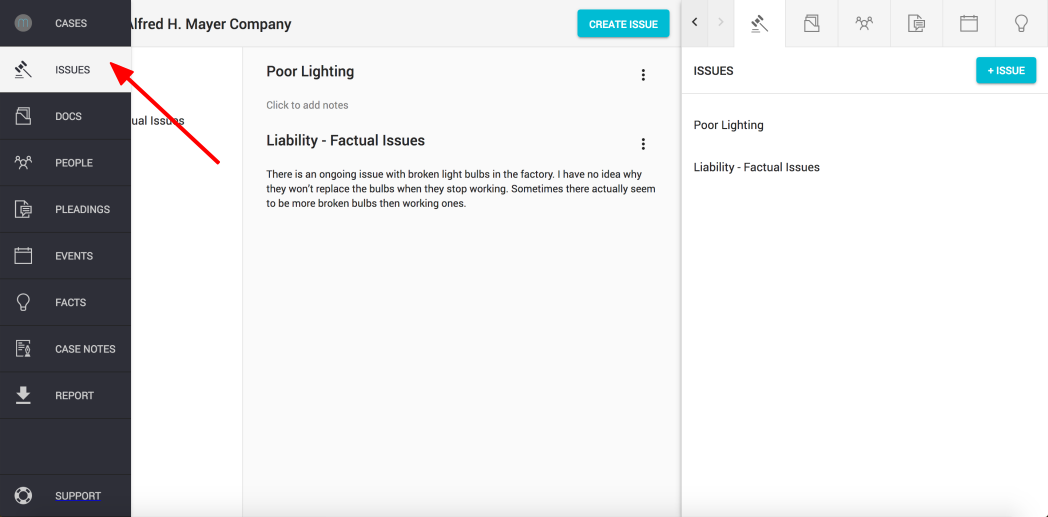
To add an issue, click on the Issues button found on the left hand navigation column or on the top right of the sidekick window
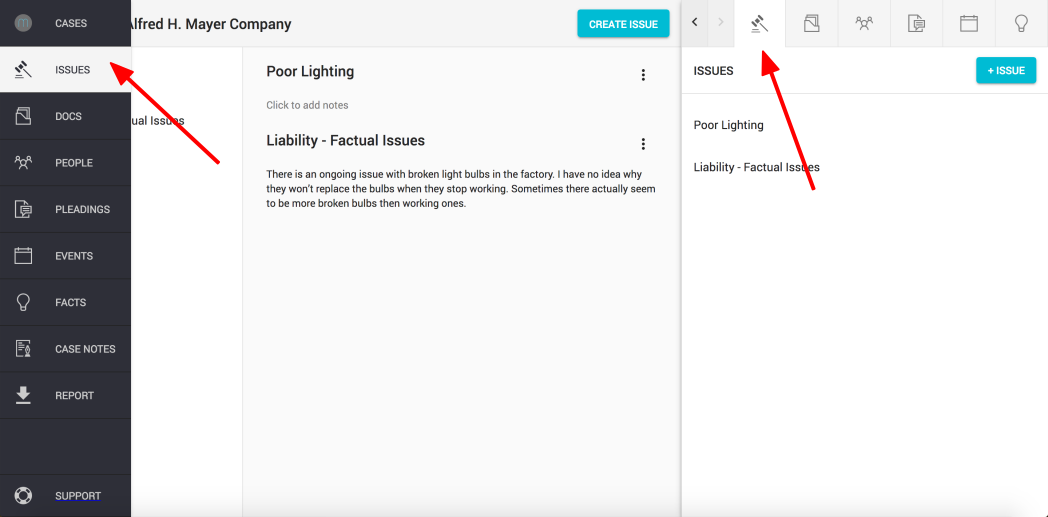
Step 2.
Click on the "Create Issue" or "+ Issue" button
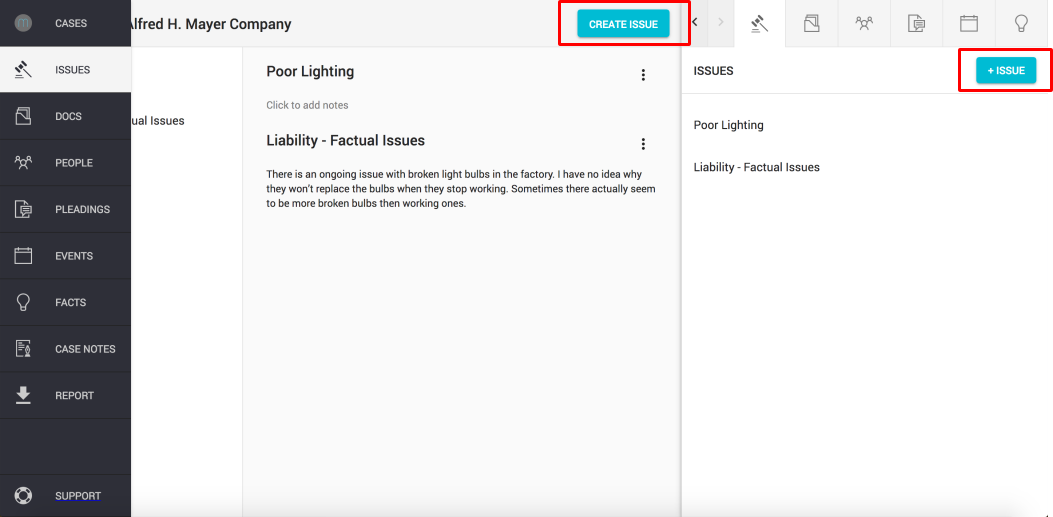
Step 3.
Give your issue a name and click "Create"
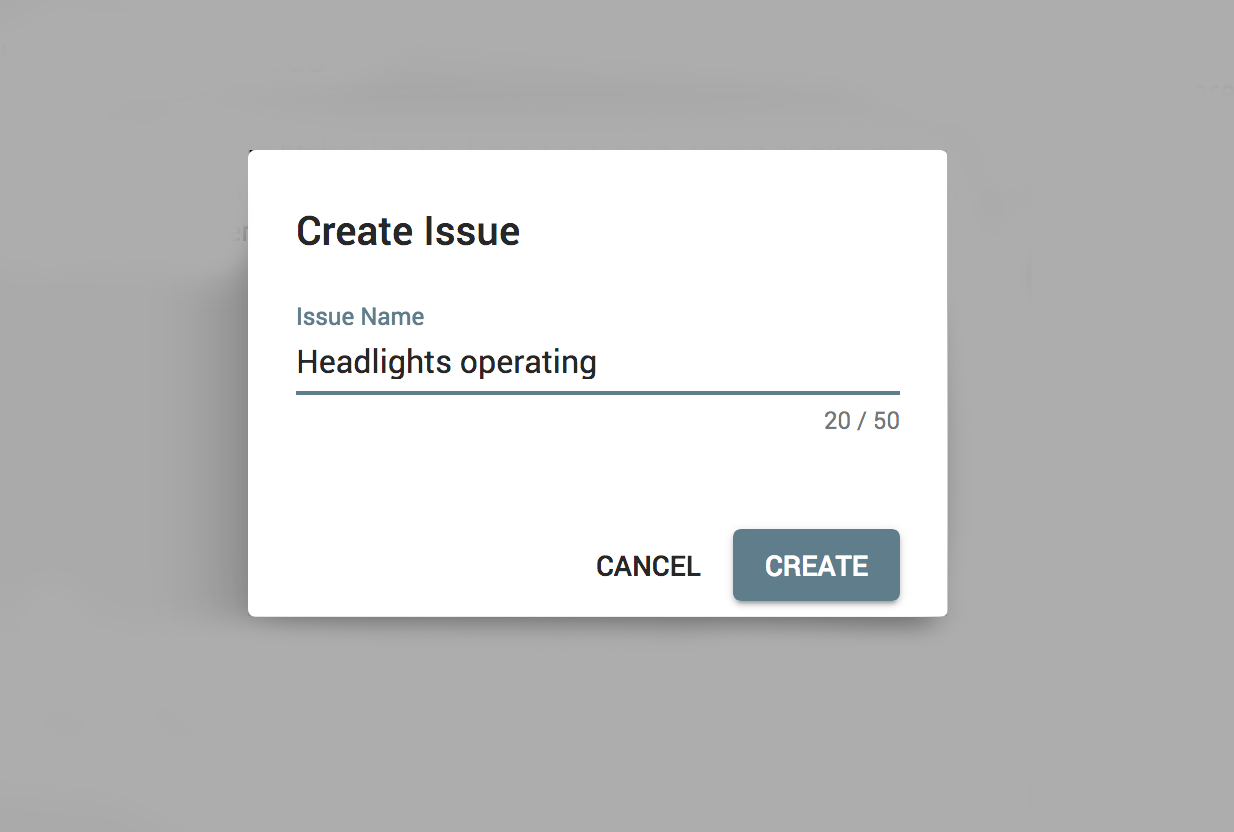
Step 4.
Your issue will appear on the issue list
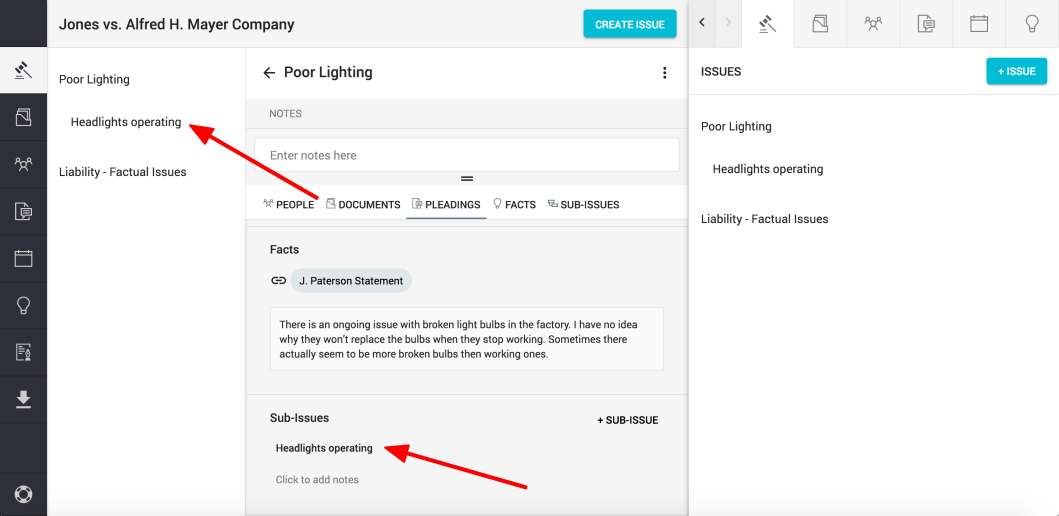
2. Steps to Add Issue Notes
Step 1.
Click on the "Issues" button found on the left hand navigation colum to open the issue overview window
Step 2.
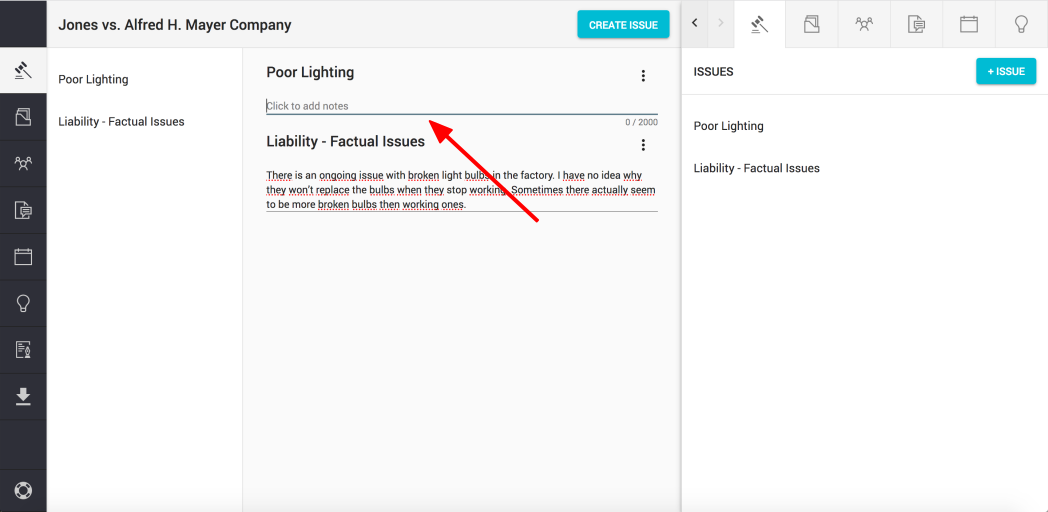
Click on the line below the issue name to add notes. The notes will save automatically once you click away from the notes field.
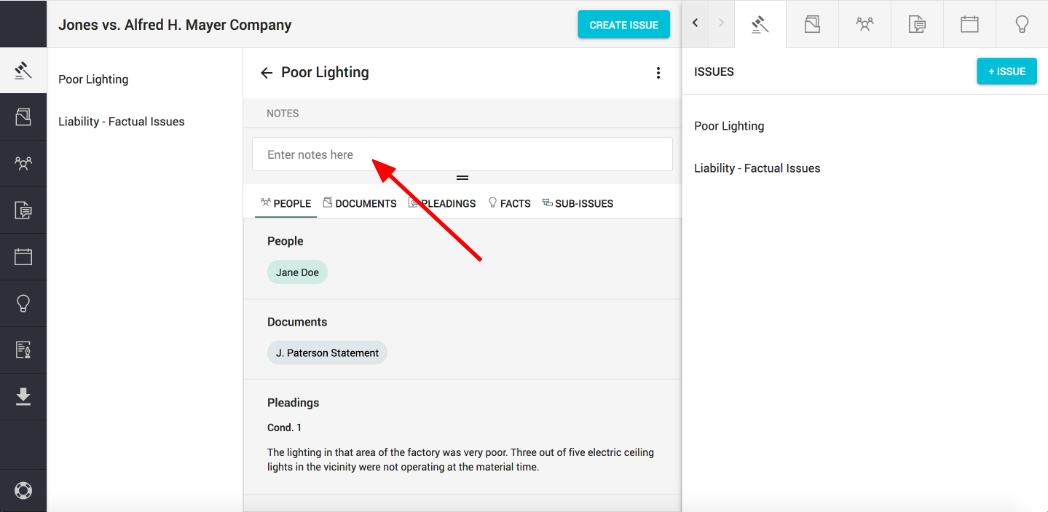
Note: You can also add notes in the issue details panel.
Click on the notes field under the issue name to make it editable and start entering your notes. Your note will save automatically once you click away from the field.
Comments
0 comments
Please sign in to leave a comment.