
Intro paragraph [optional]
Step 1.
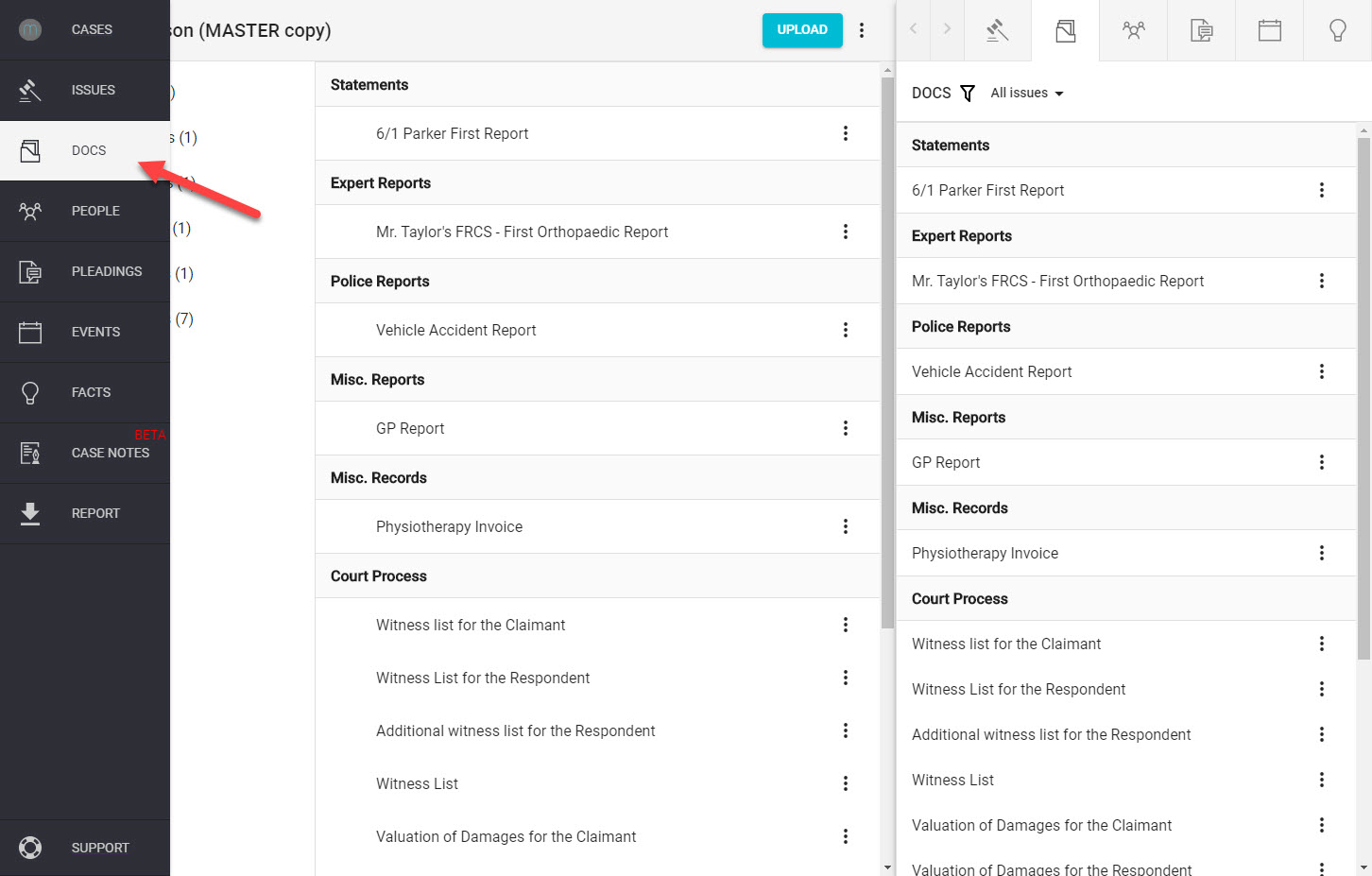
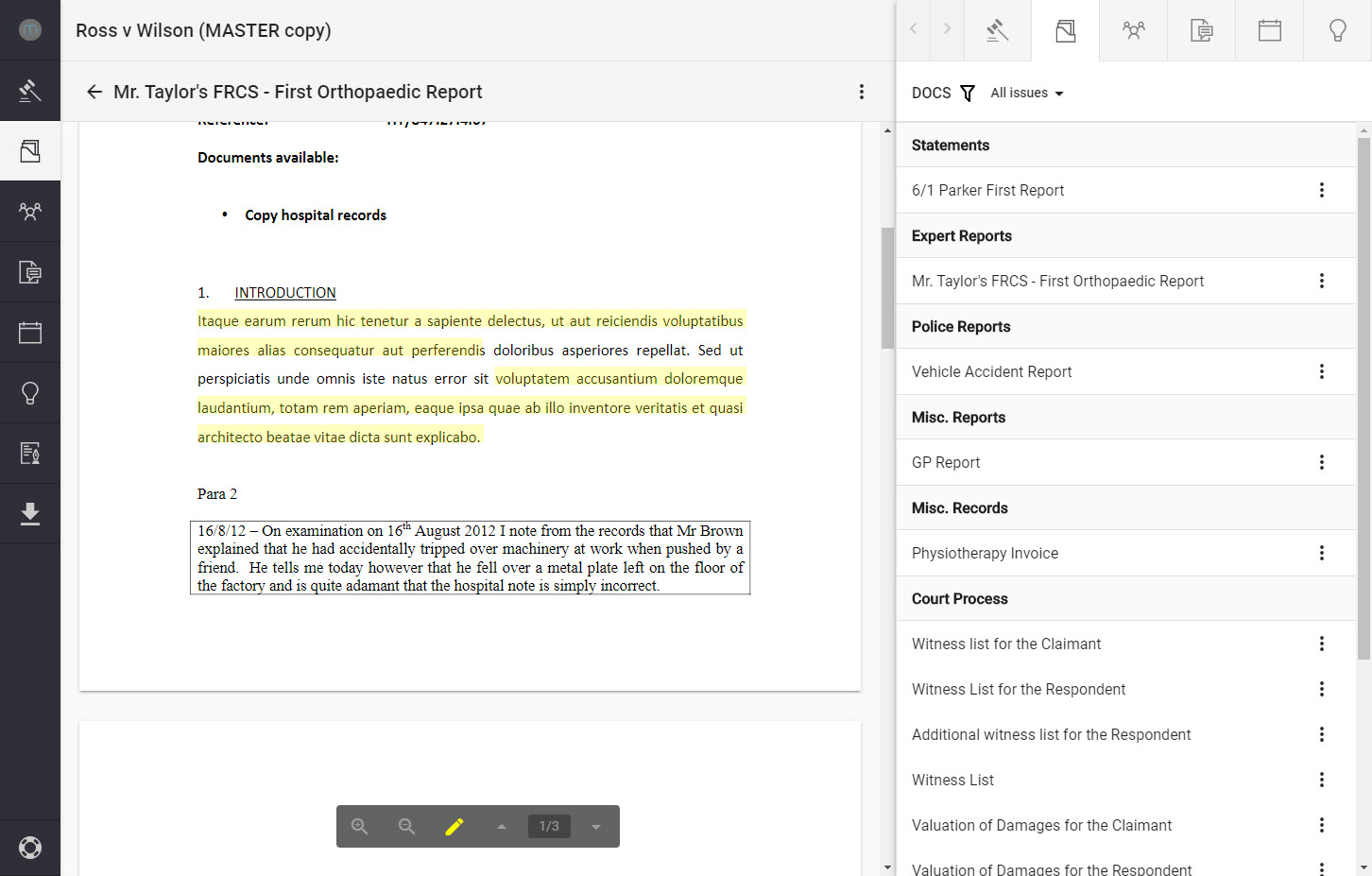
Click on the "Docs" icon, located at the top of the left-hand navigation column.
Step 2.
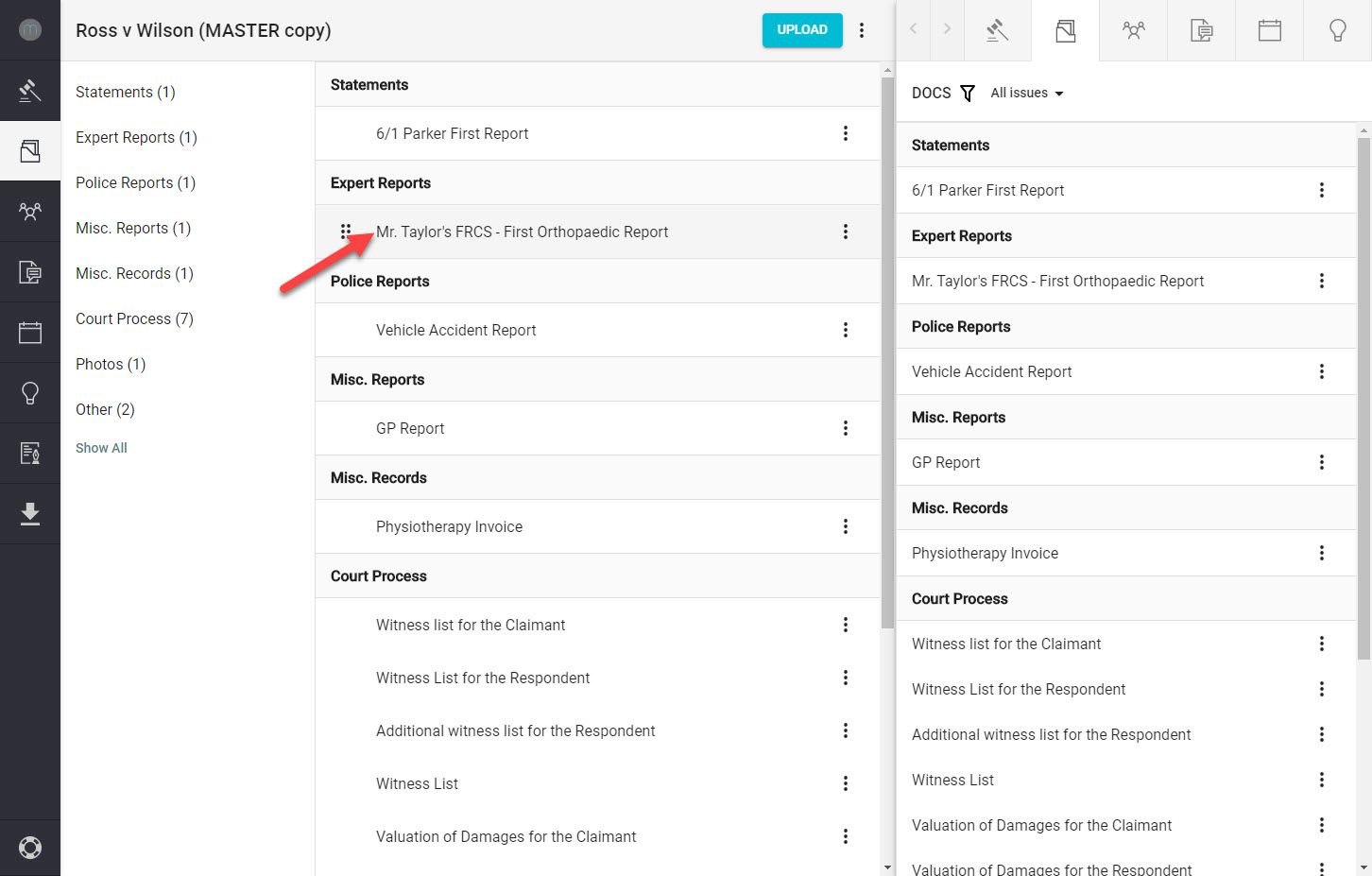
Click on the Doc you wish to edit.
Step 3.
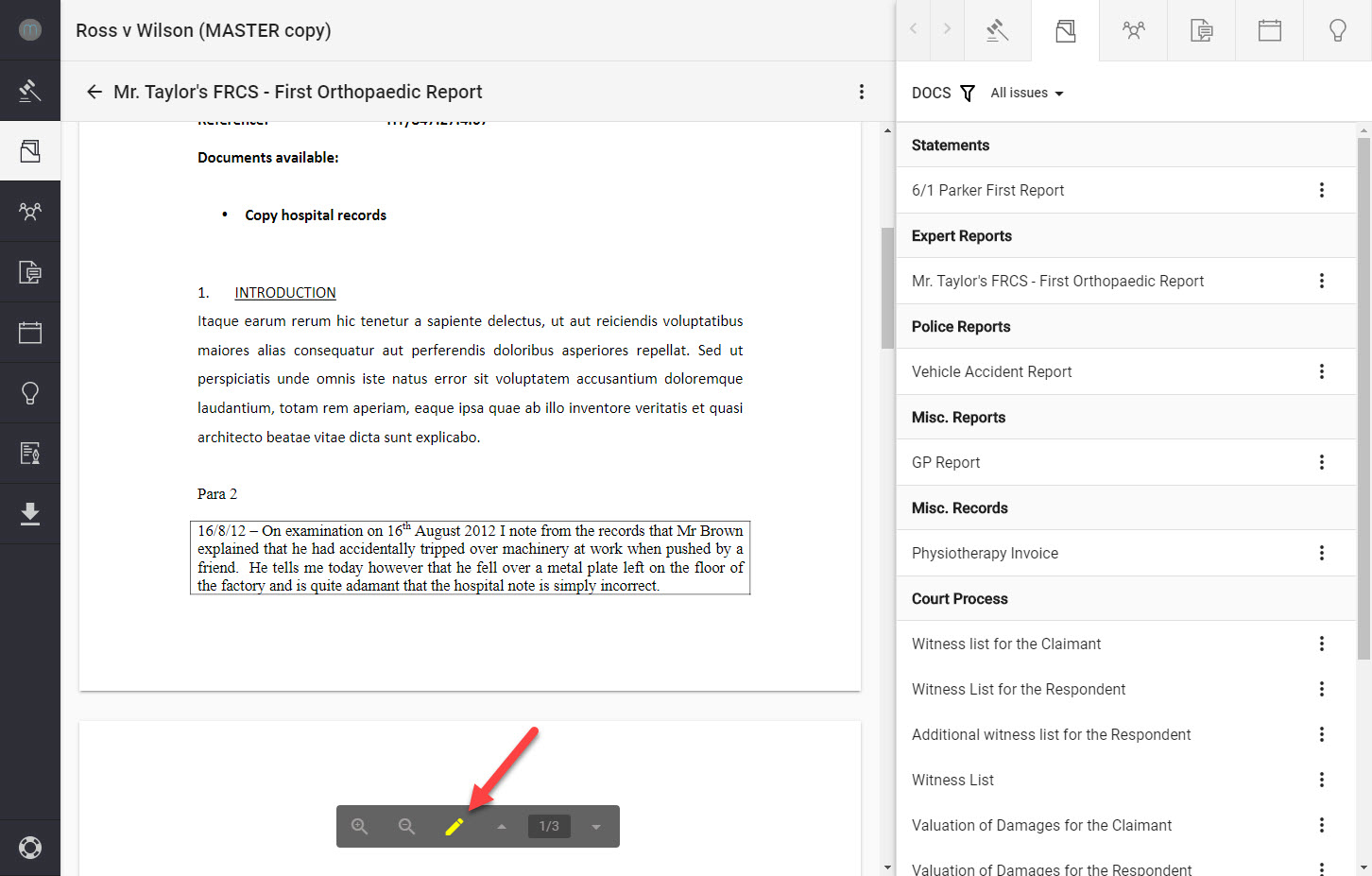
To activate the Highlighting tool, click on the "Pen" icon, located in the toolbar at the bottom of the screen.
Step 4.
Hover your cursor over the start of your selected paragraph, then click to hold the left mouse button and drag until you have “highlighted” your desired section.
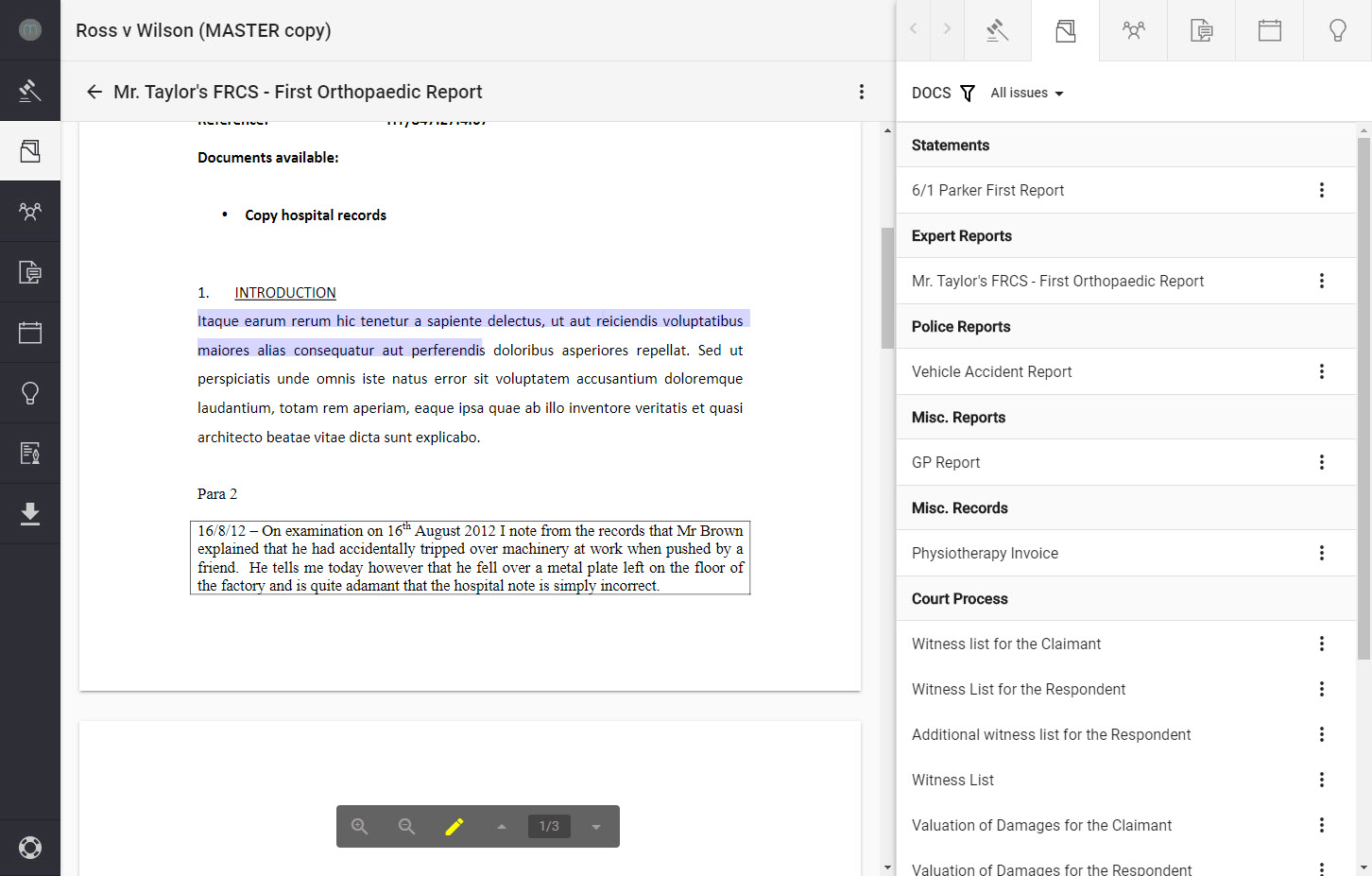
To end the section, simply release the mouse button.
Step 5.
You can now carry on highlighting text without needing to reselect the "Pen" tool. Once you have finished using the tool, simply click the "Pen" icon to disable.
Comments
0 comments
Please sign in to leave a comment.